Introduction to SamFw Tool 5.1
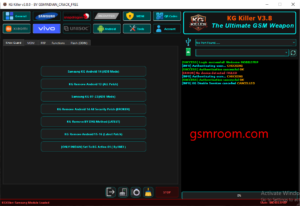
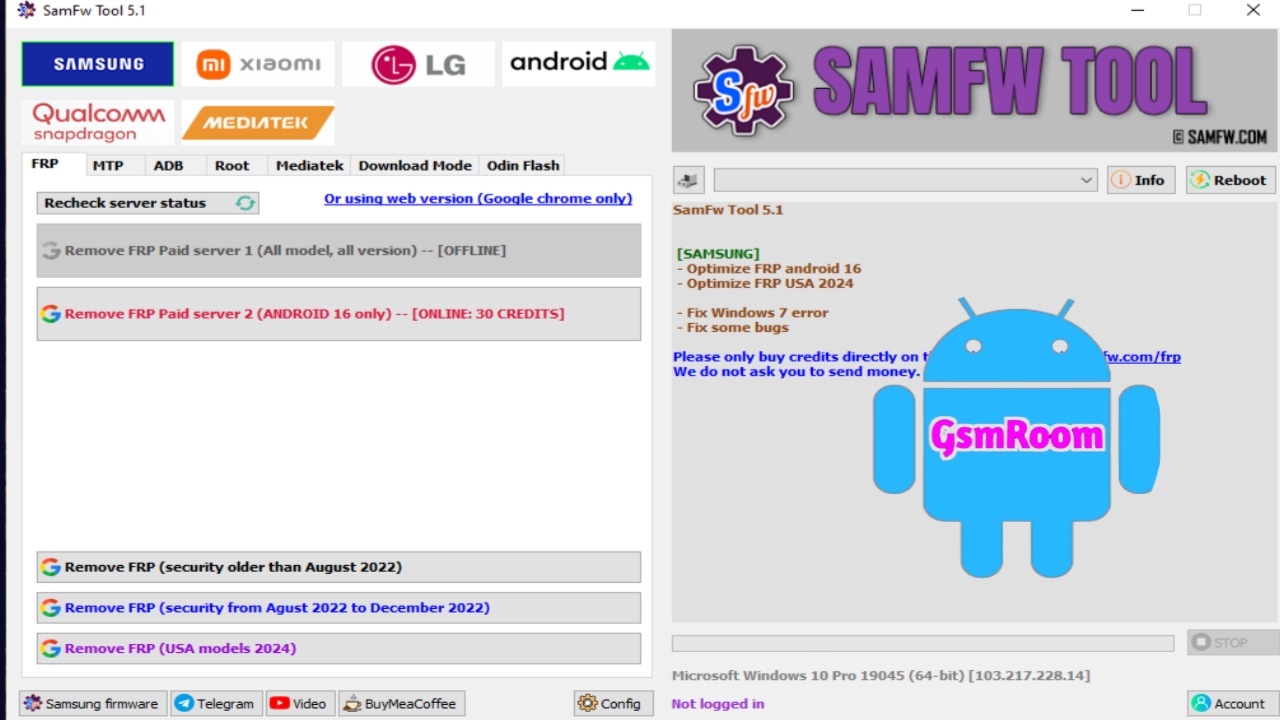
The SamFw Tool 5.1 is the latest and most powerful update designed specifically for Samsung devices, offering advanced solutions for FRP bypass, device unlocking, and system management. With full support for Samsung Android 16, this update brings improved speed, new security patch compatibility, enhanced detection, and smoother operations.
The SamFw Tool is trusted worldwide by technicians and service centers because of its accuracy, stability, and clean operation. Version 5.1 introduces new optimizations to bypass the latest Samsung security updates quickly and safely.
What Is SamFw Tool 5.1?
SamFw Tool 5.1 is a professional Samsung servicing tool developed to help technicians perform tasks such as FRP bypass, diagnostic mode activation, CSC change, ADB operations, firmware analysis, and more. It supports modern Samsung devices, including the latest One UI 7 and Android 16 models.
This version focuses on faster FRP unlocking, improved MTP connection handling, and stronger compatibility with new Samsung security protocols.
Key Features of SamFw Tool 5.1 – Latest Update
1. Samsung Android 16 FRP Bypass Support
The highlight of version 5.1 is the full support for Samsung Android 16, including devices released in 2025–2026.
It supports:
- Latest FRP security patch
- Updated MTP methods
- ADB-based FRP bypass
- Emergency dialer exploit methods
This makes it one of the fastest and most reliable FRP tools available.
2. One-Click FRP Removal (MTP Mode)
SamFw Tool 5.1 features an enhanced one-click FRP bypass with:
- Higher success rate
- Faster unlocking time
- Stable device detection
3. ADB Operations
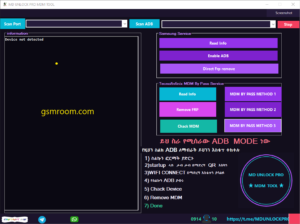
Once ADB is activated, users can:
- Remove bloatware
- Read device information
- Disable apps
- Reset device
- Change CSC
4. Improved Samsung Drivers Support
The tool provides:
- Auto-install Samsung USB drivers
- Better MTP/ADB recognition
- Stable communication with new-gen devices
5. CSC Change & Network Configuration
Version 5.1 allows users to:
- Change CSC to any supported region
- Unlock hidden network features
- Enable VoLTE, 5G, and extra bands (supported models only)
6. Factory Reset & User Data Reset
Users can perform:
- Soft reset
- Hard reset
- Full factory restore
without needing a custom recovery.
7. Knox & Security Patch Optimization
Although the tool does not remove or reset Knox, it now works more smoothly with devices running:
- Latest Knox security
- New Samsung encryption standards
- Updated system restrictions
8. Device Information & Firmware Functions
SamFw Tool 5.1 can display:
- IMEI information
- Firmware version
- Bootloader details
- Android version
- Product model
- CSC region
It also supports firmware extraction and basic analysis.
New Improvements in SamFw Tool 5.1
- Enhanced FRP detection for Android 14, 15, and 16
- Faster tool startup
- Improved ADB authorization
- Better fastboot and recovery handling
- New device compatibility list
- Lower error rates during operations
Supported Samsung Models
SamFw Tool 5.1 supports almost all modern Samsung smartphones, including:
- Galaxy S Series (S20–S25 Ultra)
- Galaxy Note Series
- Galaxy A Series (A10–A57 5G)
- Galaxy M Series
- Galaxy F Series
- Galaxy Z Fold / Flip Series
- Galaxy Tab Series
- Android 12 / 13 / 14 / 15 / 16 devices
How to Use SamFw Tool 5.1 for FRP Bypass
- Install Samsung USB drivers.
- Download and extract SamFw Tool 5.1.
- Connect Samsung device in MTP Mode.
- Launch the tool.
- Select “FRP Bypass (MTP)”.
- Follow the on-screen instructions.
- The device will reboot and FRP will be removed.
This updated method works faster on Android 16 than previous versions.
System Requirements
- Windows 7, 8, 10, 11
- Minimum 4GB RAM
- 500MB free storage
- Latest Samsung USB drivers installed
- USB 2.0/3.0 cable
Troubleshooting
Device Not Detected
- Reinstall Samsung drivers
- Try different USB cable or port
- Restart your PC and device
FRP Failed
- Device security patch may be too new
- Switch between USB modes
- Enable ADB if possible
- Reboot and retry
Tool Not Opening
- Disable antivirus
- Run as Administrator