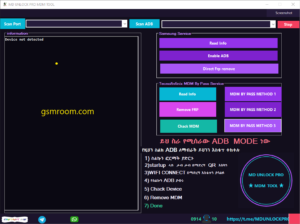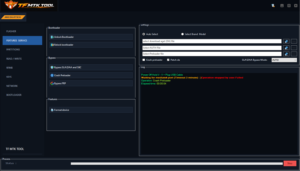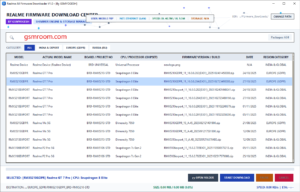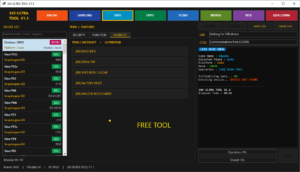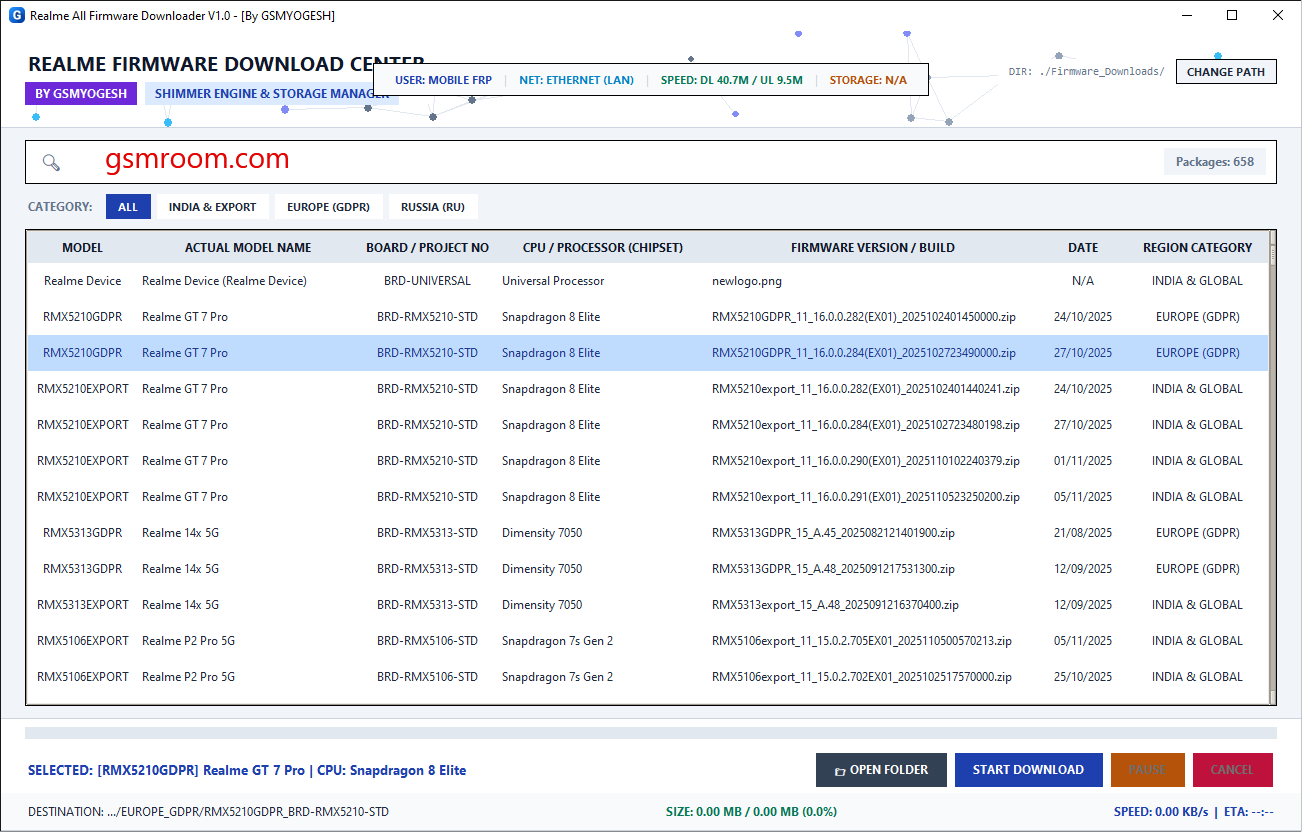
Realme Firmware Downloader v1.0 is a utility intended to help users find and download firmware packages for supported Realme smartphones. Firmware files are commonly used for software recovery, troubleshooting, system restoration, and authorized device servicing.
Finding the correct firmware can be difficult because Realme devices are released in different regional and hardware variants. A firmware package that looks similar may not necessarily be compatible with a particular model. For this reason, checking the exact model number, region, software version, and firmware package before downloading or flashing is important.
This guide explains Realme Firmware Downloader v1.0, its purpose, possible features, installation process, firmware requirements, troubleshooting steps, and important safety considerations.
What Is Realme Firmware Downloader v1.0?
Realme Firmware Downloader v1.0 is designed to simplify the process of locating Realme firmware or stock ROM packages.
Instead of manually searching through multiple firmware pages, a downloader utility can provide a more organized way to locate available files.
Realme Firmware Downloader v1.0 Features
Realme Firmware Search
The primary purpose of a firmware downloader is to make firmware discovery easier.
Users can search for firmware using information such as the device model or software version when supported.
Stock ROM Information
Stock ROM packages contain official or manufacturer-provided system software for compatible devices.
Before downloading a package, users should verify that it corresponds to the exact device.
Firmware Version Checking
Firmware versions can contain important information about the software installed on a phone.
Checking the version can help users determine whether a package is appropriate for their maintenance task.
Model-Based Searching
Realme produces many smartphones with similar names and multiple variants.
A model-based search can help narrow down the available firmware packages.
How to Install Realme Firmware Downloader v1.0
Step 1: Download the Tool
Download the Realme Firmware Downloader V1.0 package from a source you can verify.
Step 2: Scan the Package
Use reputable security software to scan the downloaded files.
Step 3: Extract the Files
If the tool is supplied as ZIP or RAR, extract the complete package into a dedicated folder.
Step 4: Launch the Application
Open the main executable and check that the expected version is displayed.
Step 5: Search for Your Model
Enter the exact Realme model information supported by the application.
Step 6: Review Firmware Details
Check the displayed firmware version, region, build, and other information.
Step 7: Download the Appropriate Package
Select a firmware package that matches the exact device configuration.
How to Identify Your Realme Model
Before downloading firmware, identify the exact model.
You can usually check the device’s model information through the phone’s settings when the operating system is accessible.
Record details such as:
- Model name
- Model number
- Android version
- Build number
- Region
- Current software version
Realme Firmware Flashing
Downloading firmware and flashing firmware are two different tasks.
A downloader may help locate a firmware package, but the actual installation process can require another authorized flashing or recovery procedure.
The appropriate process depends on the specific Realme model and firmware package.
Do not assume that every firmware file can be installed using the same method.