Meta Description: AMFTool ADB TOOL FREE Download is a powerful Android repair utility for FRP bypass, ADB functions, device management, unlocking features, and advanced smartphone servicing in 2026.
Comprehensive Outline
| Heading Level | Topic |
|---|---|
| H1 | AMFTool ADB TOOL FREE Download – Powerful Android Repair Solution 2026 |
| H2 | Introduction to AMFTool ADB Tool |
| H2 | What is AMFTool ADB Tool? |
| H2 | Key Features of AMFTool ADB Tool |
| H3 | ADB Functions |
| H3 | FRP Bypass Features |
| H3 | Device Information Tools |
| H2 | Supported Android Brands |
| H2 | System Requirements |
| H2 | How to Download AMFTool ADB Tool |
| H2 | Installation Guide |
| H3 | Step-by-Step Installation |
| H2 | How to Use AMFTool ADB Tool |
| H3 | Connecting a Device |
| H3 | Running ADB Commands |
| H2 | Benefits of Using AMFTool |
| H2 | Common Issues and Solutions |
| H2 | Security and Safety Considerations |
| H2 | Best Practices for Technicians |
| H2 | AMFTool vs Other Android Tools |
| H2 | Frequently Asked Questions |
| H2 | Conclusion |
AMFTool ADB TOOL FREE Download – Powerful Android Repair Solution 2026
Introduction to AMFTool ADB Tool
In today’s smartphone repair industry, technicians need reliable software that can perform Android maintenance tasks quickly and efficiently. One such utility gaining attention among mobile repair professionals is AMFTool ADB TOOL FREE Download. This software is designed to help users perform various Android-related operations through the Android Debug Bridge (ADB) interface.
What is AMFTool ADB Tool?
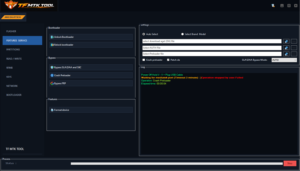
AMFTool ADB Tool is a Windows-based Android servicing utility that communicates with smartphones through Android Debug Bridge technology. The software enables users to interact with connected Android devices and perform numerous maintenance operations.
ADB is an official Android development component that allows communication between a computer and an Android device. AMFTool simplifies this process by providing a graphical interface that eliminates the need for complicated command-line operations.
The primary purpose of the tool is to streamline Android device management, diagnostics, and software servicing. Instead of manually entering commands, users can execute supported functions directly through the software’s interface.
As Android versions continue evolving, tools like AMFTool help technicians adapt to changing service requirements while maintaining productivity.
Key Features of AMFTool ADB Tool
ADB Functions
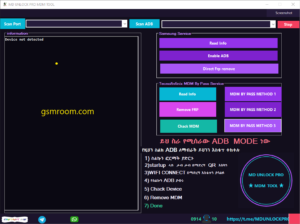
The software provides several useful ADB-based operations:
- Read device information
- Check Android version
- View build number
- Detect connected devices
- Reboot device
- Reboot into recovery mode
- Reboot into fastboot mode
- Manage installed applications
- Generate device reports
Supported Android Brands
One major advantage of AMFTool ADB TOOL FREE Download
Commonly supported brands include:
- Samsung
- Xiaomi
- Redmi
- Poco
- Vivo
- Oppo
- Realme
- Motorola
- Nokia
- OnePlus
- Tecno
- Infinix
How to Download AMFTool ADB Tool
Steps to Download
- Visit the official software source.
- Locate the latest release.
- Download the installation package.
- Extract the archive if necessary.
How to Use AMFTool ADB Tool
Connecting a Device
Before connecting:
- Enable Developer Options.
- Enable USB Debugging.
- Connect the device via USB cable.
- Authorize the PC on the smartphone.
Running ADB Commands
After successful detection:
- Select desired function.
- Verify device connection.
- Execute operation.
- Wait for completion.
- Review results.
Common Issues and Solutions
Device Not Detected
Possible causes:
- Missing drivers
- Faulty USB cable
- Disabled USB debugging
Solutions:
- Reinstall drivers
- Use original cable
- Enable USB debugging
Frequently Asked Questions (FAQs)
1. What is AMFTool ADB Tool used for?
AMFTool is used for Android device management, diagnostics, ADB operations, and smartphone servicing tasks.
2. Is AMFTool free to download?
Many releases are available free of charge, though some versions may include premium functionality.
3. Do I need USB Debugging enabled?
Yes. USB Debugging is generally required for ADB communication.
4. Can beginners use AMFTool?
Absolutely. The graphical interface makes it easier than manual ADB commands.
5. Is internet access required?
Internet access is usually only needed for updates, downloads, or activation procedures.
6. Does AMFTool support multiple Android brands?
Yes. The software commonly supports Samsung, Xiaomi, Vivo, Oppo, Realme, Motorola, and many other brands.
7. Why is my device not showing in the tool?
The most common reasons are missing drivers, disabled USB Debugging, faulty cables, or authorization issues.