🚀 Introduction
The search term Best Flash Tool by BossV V1.7 (Revised) (Miracle Team) – Free Download has become increasingly popular among Android users and mobile technicians. Many users look for reliable software tools that can help manage firmware, troubleshoot Android devices, and perform maintenance operations.
However, downloading Android servicing tools from unknown sources can sometimes create risks. That’s why this guide focuses on safe usage, official practices, and responsible device management.
This article explains the features, compatibility, installation process, and safety considerations of Best Flash Tool by BossV V1.7 in a simple and easy-to-understand way.
📱 What is Best Flash Tool by BossV?
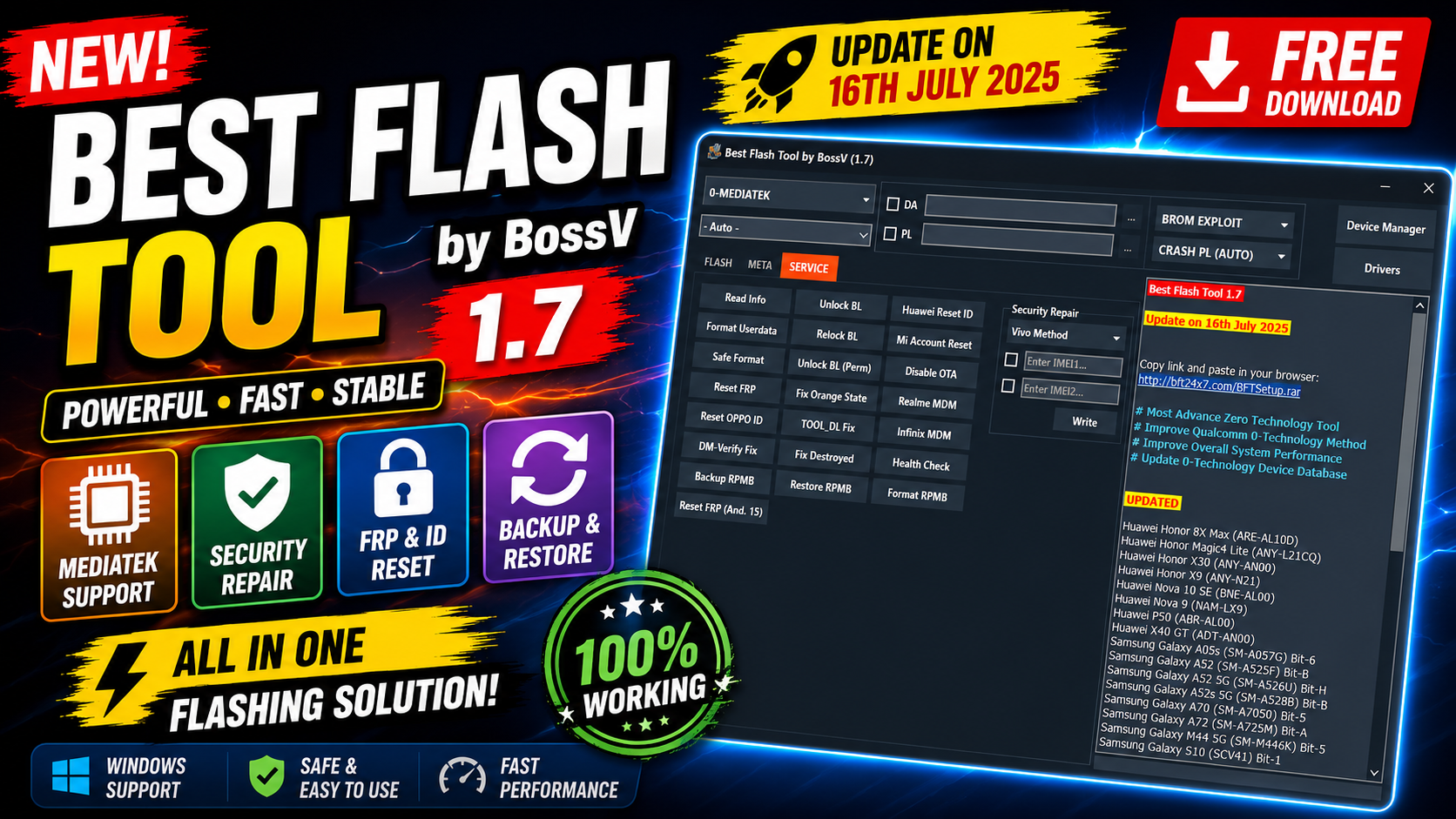
Best Flash Tool by BossV V1.7 (Revised) is commonly described as an Android servicing utility designed for firmware-related tasks and general device maintenance.
The software is often associated with functions such as:
- Device information reading
- Firmware flashing
- Backup and restore
- Driver installation
- Device reboot and maintenance tools
⚙️ Main Features
🔹 Flashing Functions
The tool may provide flashing-related capabilities that assist with:
- Firmware installation
- Device recovery
- Software repair
- Boot issue troubleshooting
🔹 Device Maintenance
Users may also find maintenance utilities such as:
- Device reboot tools
- Fastboot and ADB support
- Device information reading
- Driver management
🔹 Backup and Restore
- Firmware backup
- User data backup
- Restore functions
📱 Supported Brands
- Samsung
- Xiaomi
- Redmi
- Vivo
- Realme
- Tecno
- Infinix
- Itel
- Huawei
- Nokia
- Motorola
Supported Chipsets
- Qualcomm
- MediaTek
- Unisoc
- Huawei Kirin
- EDL Mode
- Fastboot Mode
- ADB Mode
Qualcomm Flashing Features
- Read GPT
- Read Data
- Flash Firmware
- Reboot Device
- Read Partition
- Write Partition
- Erase Partition
- Select Sector Size
- LUN Selection
- Begin Address Selection
- End Address Selection
- Load Firehose File
- Load Patch File
- Load Firmware File
- Backup GPT
- Reset FRP
- Factory Reset
- Mi Account Reset
- EFS Backup
- EFS Restore
Qualcomm Unlock Features
- Reset FRP
- Reset Lock
- Realme FRP Reset
- Realme Reset Lock
- Realme Narzo Series Support
- Realme GT Series Support
- Realme Neo Series Support
- Realme X Series Support
- Realme C Series Support
- Realme Q Series Support
- Realme V Series Support
Qualcomm Network Repair Features
- Write IMEI
- QCN Read
- QCN Write
- Critical Read
- Critical Write
- Diag Enable
- Diag Enable Xiaomi
- Diag Enable Root
MediaTek Flashing Features
- Read GPT
- Read Data
- Flash Firmware
- Reboot Device
- Read Partition
- Write Partition
- Erase Partition
- Scatter File Support
- Preloader Selection
- Download Agent Support
- Read RPMB
- Write RPMB
- Erase RPMB
- Backup RPMB
- Restore RPMB
- Factory Reset
- Safe Format
- Meta Mode Support
- Payload Parser
- Open Browser
MediaTek Unlock Features
- Reset FRP
- Reset Userdata and FRP
- Reset Lock
- Reset Mi Account
- Relock Bootloader
- Unlock Bootloader
- Erase FRP
- Security Repair
- Fix DM Verify
- Patch IMEI
- Erase Data
- Reset Backup
MediaTek META Features
- META Mode Connection
- IMEI Repair
- NVRAM Operations
- Network Repair
- Security Repair
- Extra Mode Features
- Oplus Demo Exit Code
- Vivo Demo Exit Code
- Demo Phone Unlock
- Special Service Functions
Unisoc Features
- Tiger T7200 FRP Bypass
- Tiger T7250 FRP Bypass
- Factory Reset
- SOC Detection
- Auto Detection
- Reset User Lock
- Samsung Features
- Samsung FRP Reset
- Samsung Factory Reset
- Samsung Erase FRP Bit 1
- Samsung Erase FRP Bit 2
- Samsung MediaTek Support
Xiaomi Features
- Mi Account Reset
- Xiaomi Diag Enable
- Bootloader Unlock
- FRP Reset
- Factory Rese
Supported Operations
- Flash Firmware
- Read Firmware
- Write Firmware
- Erase Firmware
- Readback Support
- Partition Manager
- Bootloader Operations
- FRP Unlock
- Userdata Reset
- Security Backup
- Security Restore
- Device Information Read
- Memory Information Read
- ADB Support
- Fastboot Support
- EDL Support
🧭 How to Use the Tool
Basic workflow:
- Open the software
- Connect the device
- Select the desired operation
- Follow on-screen instructions
- Wait for the process to complete
Always verify compatibility before flashing firmware.
🚀 Advantages of Flash Tools
Android servicing tools can provide several benefits:
- Faster troubleshooting
- Firmware recovery assistance
- Device diagnostics
- Multi-brand support
For technicians, these tools may simplify repair workflows.
🔄 Alternatives to Best Flash Tool
If needed, users may also consider:
- Official Android SDK Platform Tools
- Manufacturer flashing tools
- Authorized service software
These options often provide more stable support.
💡 Expert Tips
- Always back up important files
- Use high-quality USB cables
- Keep drivers updated
- Learn basic ADB/Fastboot commands
- Verify firmware compatibility before flashing
🏁 Conclusion
The keyword Best Flash Tool by BossV V1.7 (Revised) (Miracle Team) – Free Download continues to attract attention from Android users and technicians. While these tools may offer useful maintenance and flashing functions, safety and responsible usage should always come first.
Choosing trusted downloads, making backups, and following proper procedures can help reduce risks and improve device stability.
✅ Final Thoughts
Android servicing tools can be extremely useful when used correctly. Stay informed, avoid risky downloads, and always prioritize trusted software sources for the best experience.
Post-Article Message:
Thank you for reading this fully optimized guide! If you found it helpful, feel free to share it and explore more tech solutions. 🚀