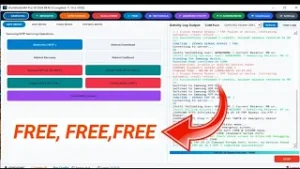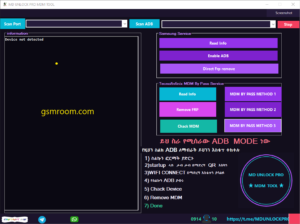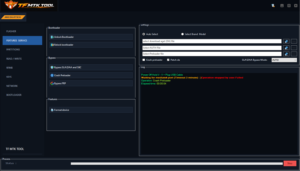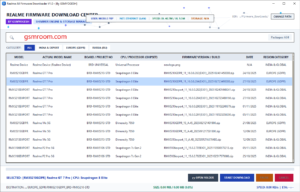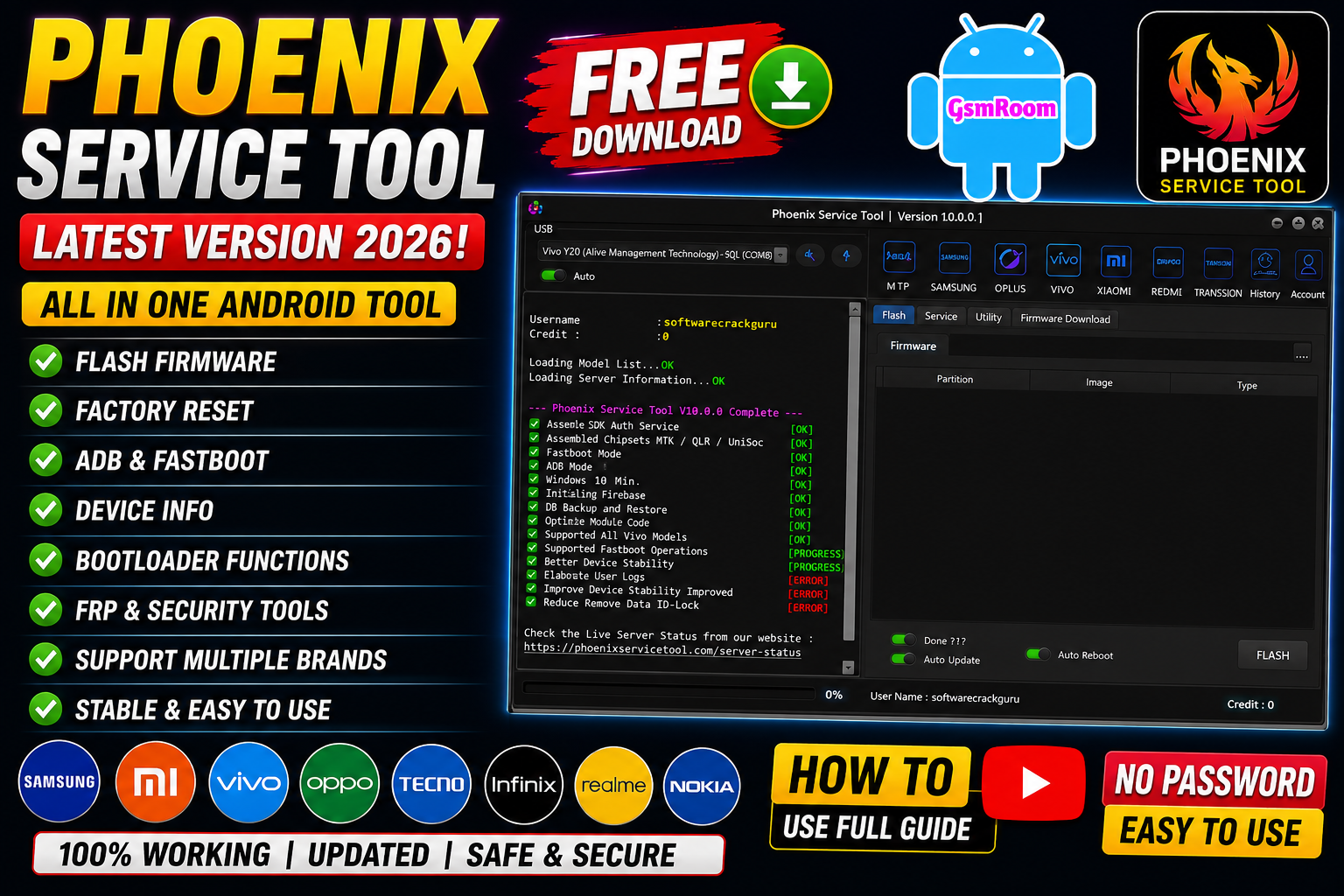
Phoenix Service Tool is a professional Windows utility designed for servicing and maintaining Android smartphones. The tool is widely used by mobile technicians for operations such as firmware flashing, factory reset, FRP-related servicing on supported devices, bootloader functions, and device diagnostics.
The latest 2026 version introduces improved support for modern Android devices along with better stability and performance.
What is Phoenix Service Tool?
Phoenix Service Tool is an advanced Android servicing application that supports multiple smartphone brands and chipsets. It provides several maintenance and repair functions through an easy-to-use interface.
The software is commonly used for:
- Device information reading
- Firmware flashing
- Factory reset
- Fastboot utilities
- Bootloader management
- Device diagnostics
- Backup functions
- ADB operations
It is designed mainly for technicians and advanced Android users.
Main Features of Phoenix Service Tool
🔹 Android Device Support
The tool supports many Android smartphones from brands such as:
- Xiaomi
- Samsung
- Vivo
- Oppo
- Realme
- Tecno
- Infinix
- Motorola
- Nokia
📱 Supported Brands
- Samsung
- Xiaomi
- Redmi
- Vivo
- Realme
- Tecno
- Infinix
- Itel
- Huawei
- Nokia
- Motorola
Supported Chipsets
- Qualcomm
- MediaTek
- Unisoc
- Huawei Kirin
- EDL Mode
- Fastboot Mode
- ADB Mode
Qualcomm Flashing Features
- Read GPT
- Read Data
- Flash Firmware
- Reboot Device
- Read Partition
- Write Partition
- Erase Partition
- Select Sector Size
- LUN Selection
- Begin Address Selection
- End Address Selection
- Load Firehose File
- Load Patch File
- Load Firmware File
- Backup GPT
- Reset FRP
- Factory Reset
- Mi Account Reset
- EFS Backup
- EFS Restore
Qualcomm Unlock Features
- Reset FRP
- Reset Lock
- Realme FRP Reset
- Realme Reset Lock
- Realme Narzo Series Support
- Realme GT Series Support
- Realme Neo Series Support
- Realme X Series Support
- Realme C Series Support
- Realme Q Series Support
- Realme V Series Support
Qualcomm Network Repair Features
- Write IMEI
- QCN Read
- QCN Write
- Critical Read
- Critical Write
- Diag Enable
- Diag Enable Xiaomi
- Diag Enable Root
MediaTek Flashing Features
- Read GPT
- Read Data
- Flash Firmware
- Reboot Device
- Read Partition
- Write Partition
- Erase Partition
- Scatter File Support
- Preloader Selection
- Download Agent Support
- Read RPMB
- Write RPMB
- Erase RPMB
- Backup RPMB
- Restore RPMB
- Factory Reset
- Safe Format
- Meta Mode Support
- Payload Parser
- Open Browser
MediaTek Unlock Features
- Reset FRP
- Reset Userdata and FRP
- Reset Lock
- Reset Mi Account
- Relock Bootloader
- Unlock Bootloader
- Erase FRP
- Security Repair
- Fix DM Verify
- Patch IMEI
- Erase Data
- Reset Backup
MediaTek META Features
- META Mode Connection
- IMEI Repair
- NVRAM Operations
- Network Repair
- Security Repair
- Extra Mode Features
- Oplus Demo Exit Code
- Vivo Demo Exit Code
- Demo Phone Unlock
- Special Service Functions
Unisoc Features
- Tiger T7200 FRP Bypass
- Tiger T7250 FRP Bypass
- Factory Reset
- SOC Detection
- Auto Detection
- Reset User Lock
- Samsung Features
- Samsung FRP Reset
- Samsung Factory Reset
- Samsung Erase FRP Bit 1
- Samsung Erase FRP Bit 2
- Samsung MediaTek Support
Xiaomi Features
- Mi Account Reset
- Xiaomi Diag Enable
- Bootloader Unlock
- FRP Reset
- Factory Rese
Supported Operations
- Flash Firmware
- Read Firmware
- Write Firmware
- Erase Firmware
- Readback Support
- Partition Manager
- Bootloader Operations
- FRP Unlock
- Userdata Reset
- Security Backup
- Security Restore
- Device Information Read
- Memory Information Read
- ADB Support
- Fastboot Support
- EDL Support
🔹 Fastboot and ADB Utilities
Phoenix Service Tool includes powerful Fastboot and ADB features.
Functions Include:
- Reboot to Fastboot
- Recovery reboot
- Device information
- ADB shell commands
- Package management
- Driver support
🔹 Firmware Flashing
The software helps users flash stock firmware on supported devices.
Flashing Features:
- Fastboot firmware flashing
- Partition flashing
- Device reboot management
- Firmware diagnostics
🔹 Device Maintenance
Useful maintenance functions include:
- Factory reset
- Cache cleaning
- Software troubleshooting
- Device diagnostics
- USB communication tools
🔹 User-Friendly Interface
The latest version comes with a clean dashboard and organized menus, making it easier for beginners and technicians to use.
What’s New in Phoenix Service Tool 2026?
The updated version introduces several improvements:
- Better compatibility with newer Android devices
- Improved flashing stability
- Faster device detection
- Updated USB communication support
- Enhanced Windows 11 compatibility
- Improved user interface design
Supported Modes
Phoenix Service Tool works with several Android connection modes including:
- ADB Mode
- Fastboot Mode
- MTP Mode
- Download Mode (supported devices)
How to Download Phoenix Service Tool
You can find Phoenix Service Tool through trusted GSM forums and Android servicing communities.
Download Tips
- Download only from trusted sources
- Scan files with antivirus software
- Avoid suspicious modified versions
- Backup important files before use
How to Install Phoenix Service Tool
Step-by-Step Installation
Step 1: Download the Tool
Download the latest Phoenix Service Tool package.
Step 2: Extract Files
Use WinRAR or 7-Zip to extract the archive.
Step 3: Install Drivers
Install:
- ADB Drivers
- Fastboot Drivers
- OEM USB Drivers
Step 4: Run as Administrator
Open the software with administrator privileges.
Step 5: Connect Device
Use a good-quality USB cable to connect your smartphone.
Advantages of Phoenix Service Tool
✔ Easy to Use
The interface is clean and beginner-friendly.
✔ Multiple Device Support
Supports many Android brands and chipsets.
✔ Fast Performance
Improved flashing and detection speed.
✔ Lightweight Software
Runs smoothly even on low-end PCs.
✔ Regular Updates
New versions improve support and stability.
Common Problems and Solutions
Device Not Detected
Fixes:
- Reinstall USB drivers
- Enable USB Debugging
- Change USB port
- Use another USB cable
Flashing Failed
Solutions:
- Verify firmware compatibility
- Check battery charge
- Re-download firmware files
- Update drivers
Tool Crashing
Fixes:
- Run as Administrator
- Install Visual C++ packages
- Disable antivirus temporarily
- Restart PC
Safety Tips
Before using any Android servicing software:
- Always backup device data
- Use trusted firmware files
- Avoid unsupported operations
- Keep USB connection stable
- Do not interrupt flashing process
Is Phoenix Service Tool Safe?
Phoenix Service Tool is generally safe when downloaded from reliable sources and used responsibly. Avoid unofficial cracked versions because they may contain malware or unstable modifications.
Always use the software for legal servicing and personal device maintenance only.
Conclusion
Phoenix Service Tool Latest Version Free Download (2026) is a useful Android servicing utility for technicians and advanced users. With support for Fastboot, ADB, firmware flashing, device diagnostics, and maintenance operations, it provides a convenient all-in-one platform for Android software management.